iPhone · CarPlay · Android · Android Auto · Android Automotive OS

Your playlists, on the car screen.

Carvia is an M3U / IPTV player built for the car. Add a playlist once, then watch your live channels on the phone — and right on the car display.

30
languages
M3U · M3U8 · HLS · Xtream
sources
Web
browser built in
Carvia on a CarPlay display: a live channel playing with previous, play/pause, next and channel list buttons
How it works

Two platforms, one idea: add a list once, watch it where you are.

iPhone + CarPlay

Live on the App Store
  1. Add a source

    Paste an M3U / M3U8 link, scan a QR code, or sign in to your Xtream account. Channels, movies and series are sorted into groups automatically.

  2. Plug in

    Open Carvia on the CarPlay screen. Library, Browser and Mirror sit in a top bar — just like the tabs on your iPhone.

  3. Tap a channel

    It plays on the car display in a clean player: back, favorite, 10-second skip and the car's own next / previous buttons.

Android phone + car

Coming to Google Play · APK available
  1. Add a source on the phone

    M3U / M3U8, HLS, HTTP streams or an Xtream login. Local files too — MKV, AVI, MP4 and more, played offline.

  2. Android Auto: listen

    Carvia appears among the media apps. Browse favorites, playlists and groups with logos; channels play as audio. The picture stays on your phone.

  3. Android Automotive OS: watch on the car screen

    In cars with Google built-in, a full-screen player with large touch targets. When you start driving, video switches off by itself.

On the car screen

Built for the dashboard, not shrunk to fit it.

Live TV

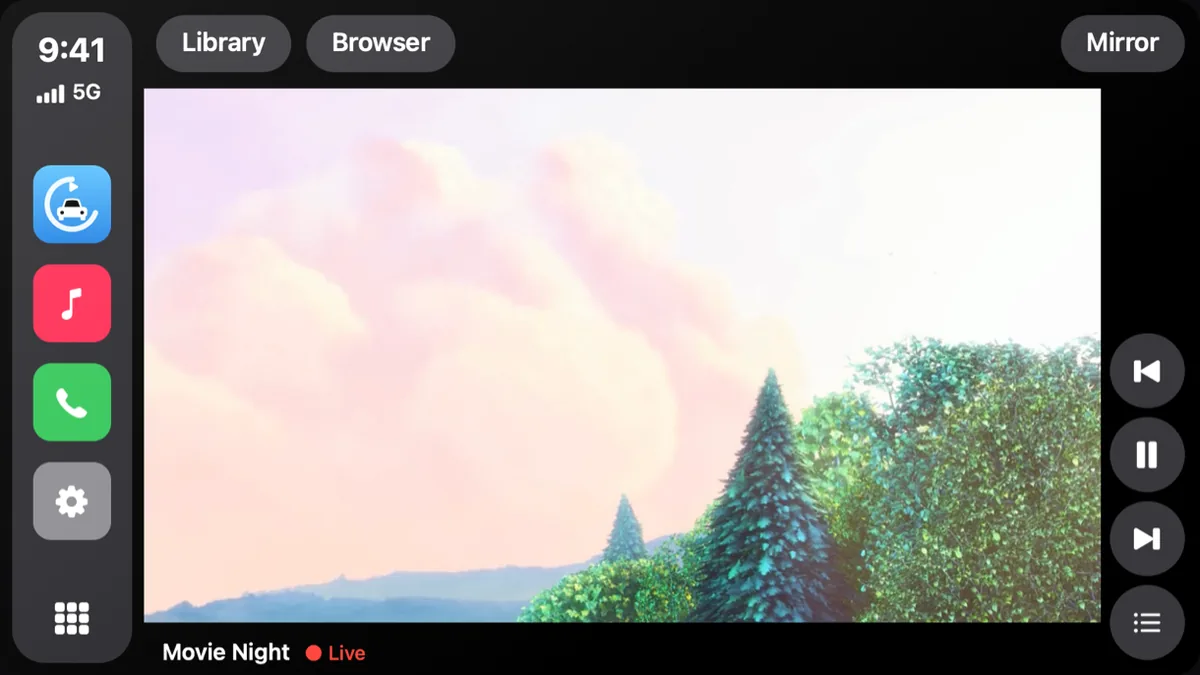
Live channels on CarPlay

Carvia opens on every CarPlay car screen — including cars without CarPlay video support. Tap a channel and it plays in a player made for the car: the picture fits the display and the buttons never cover it.

CarPlay screen showing a live channel in the Carvia player
Channels

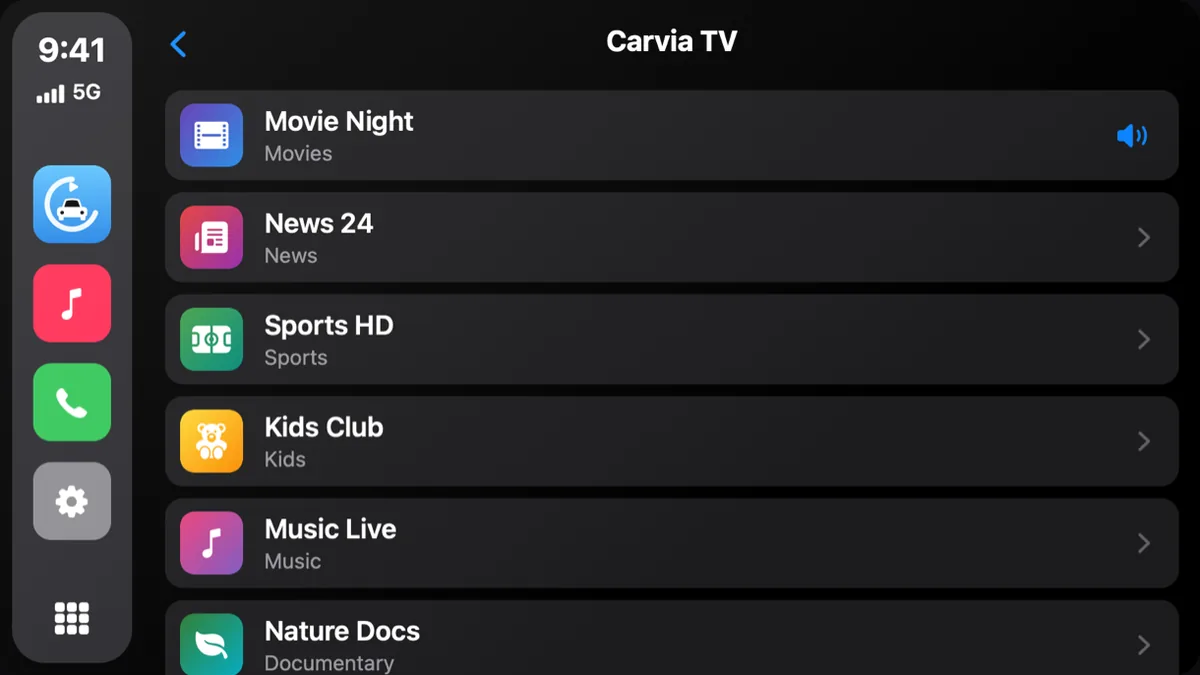
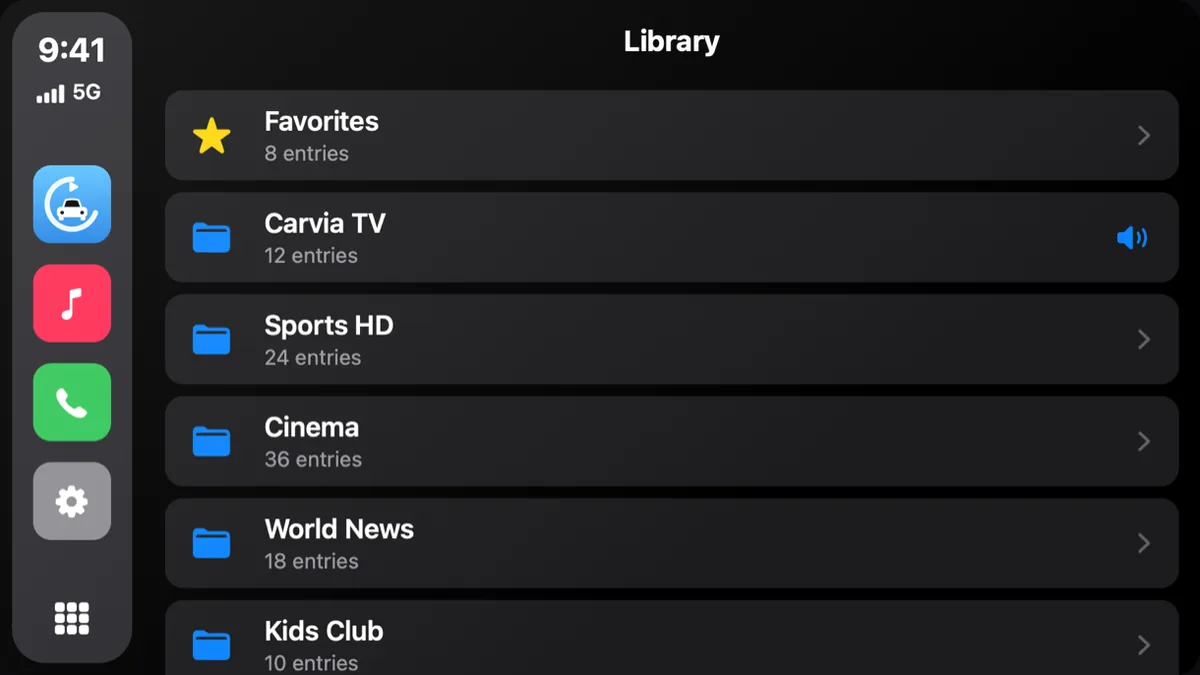
Your lists, with logos, one tap away

Playlists appear as folders and channels as a list with their logos. Favorites stay at the top. Since 1.2.2 the library is split into Live TV, Movies and Series, with your provider's categories as folders and posters that adapt to the screen width.

CarPlay channel list with channel logos and groups
Browser

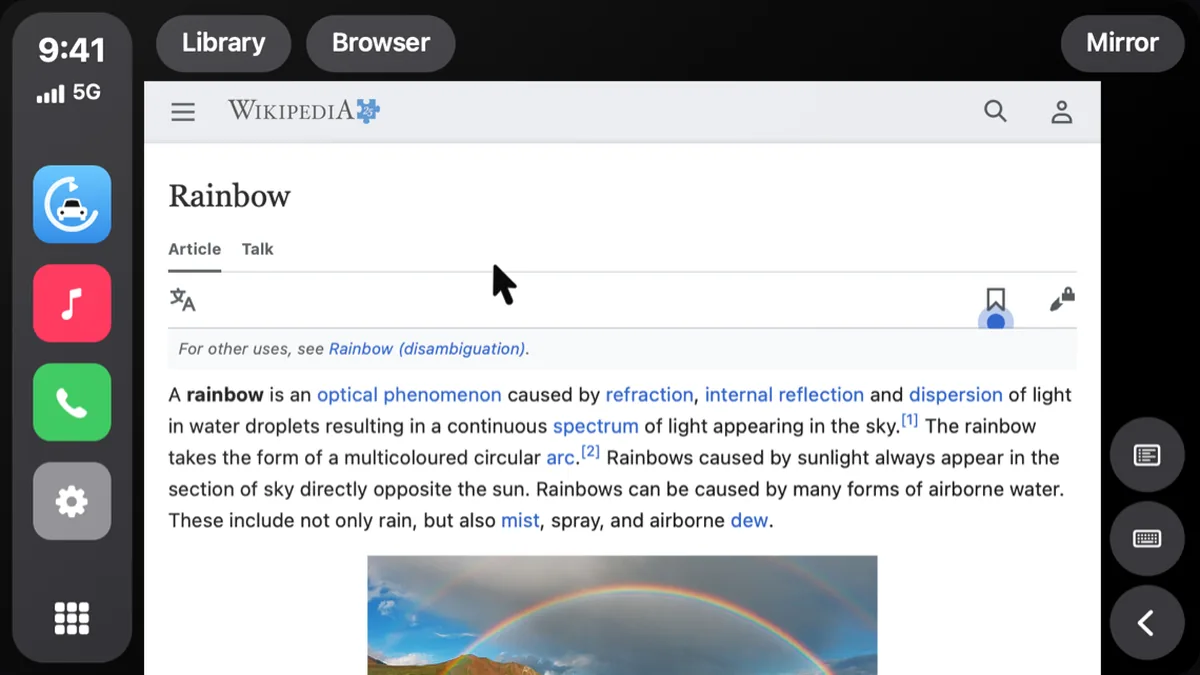
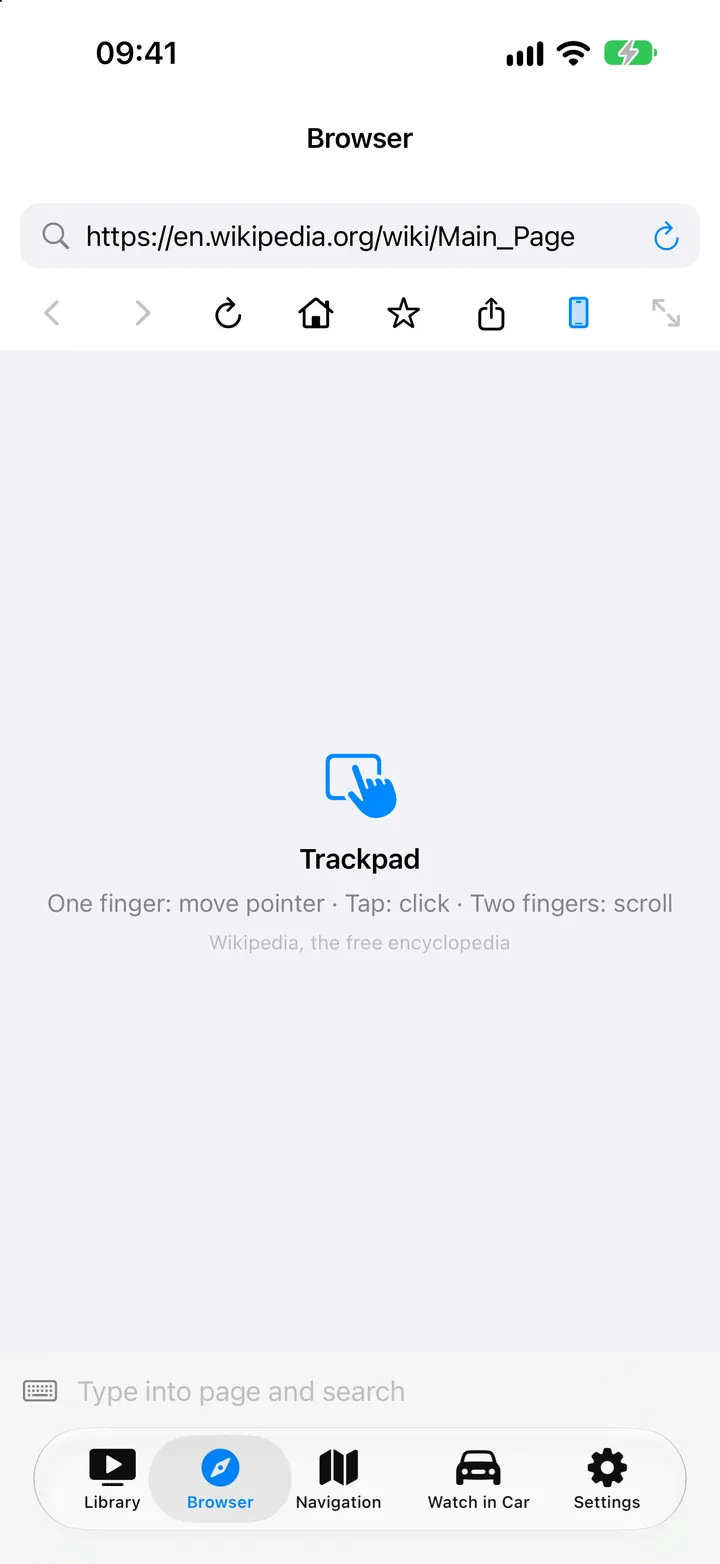
A web browser in the car. Your iPhone is the trackpad.

Open your favorite sites on the car display. Move the pointer with one finger, tap to click, scroll with two fingers and type with the iPhone keyboard. Videos in the page go fullscreen on the car screen.

CarPlay screen showing a web page, with the iPhone acting as a trackpad
iPhone trackpad view for the car browser
Mirror

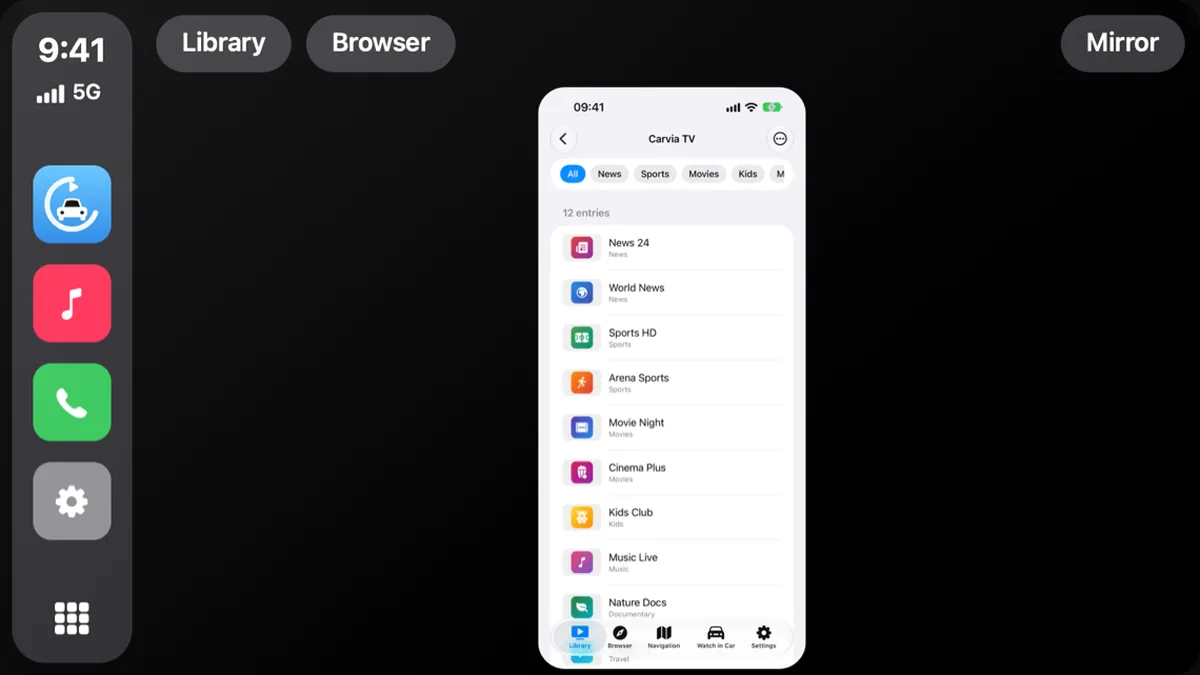
Mirror your whole iPhone screen

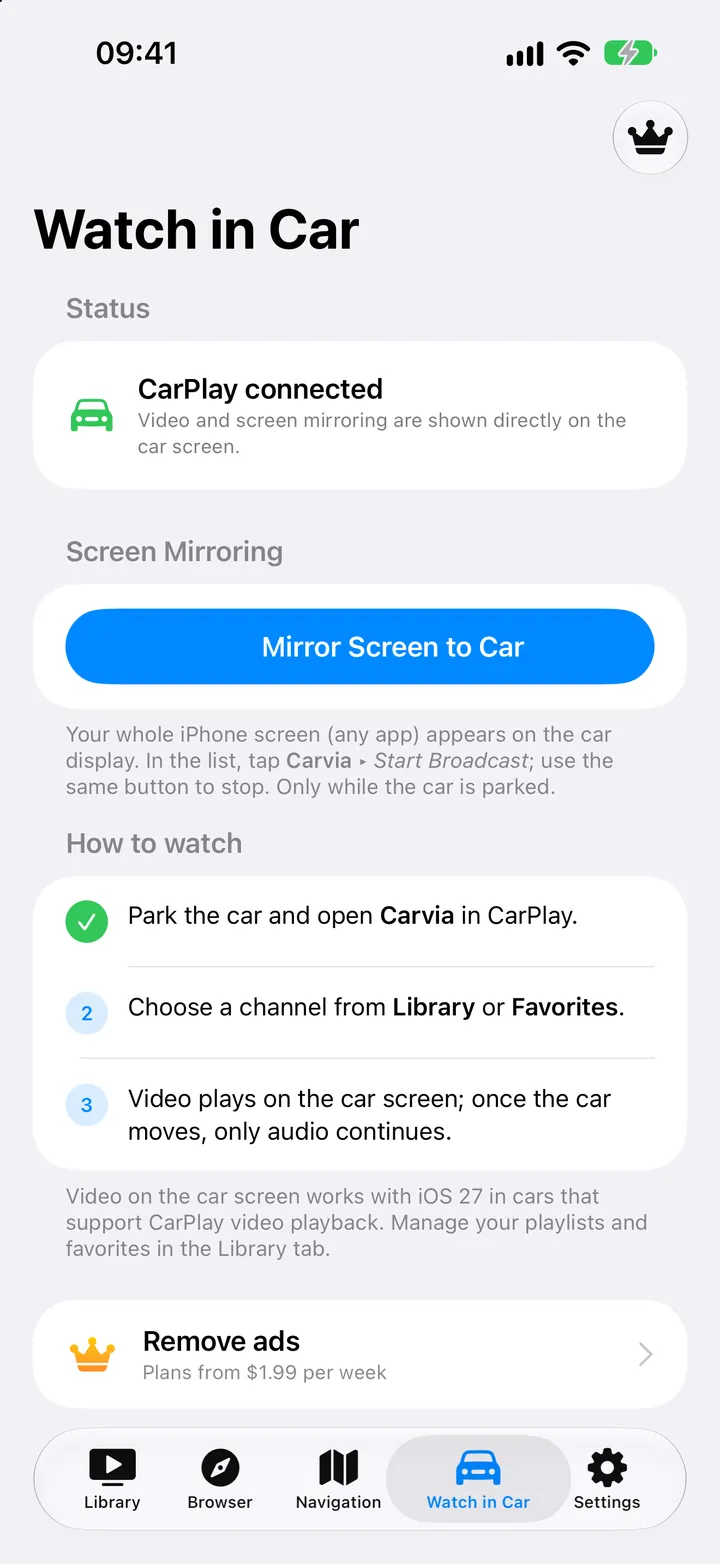
Any app, portrait or landscape, on the car display. Mirroring was rebuilt in 1.2.3 with hardware encoding for smooth video up to 30 fps — and Premium unlocks High and Ultra quality (Full HD, up to 60 fps on supported iPhones).

CarPlay screen mirroring the iPhone
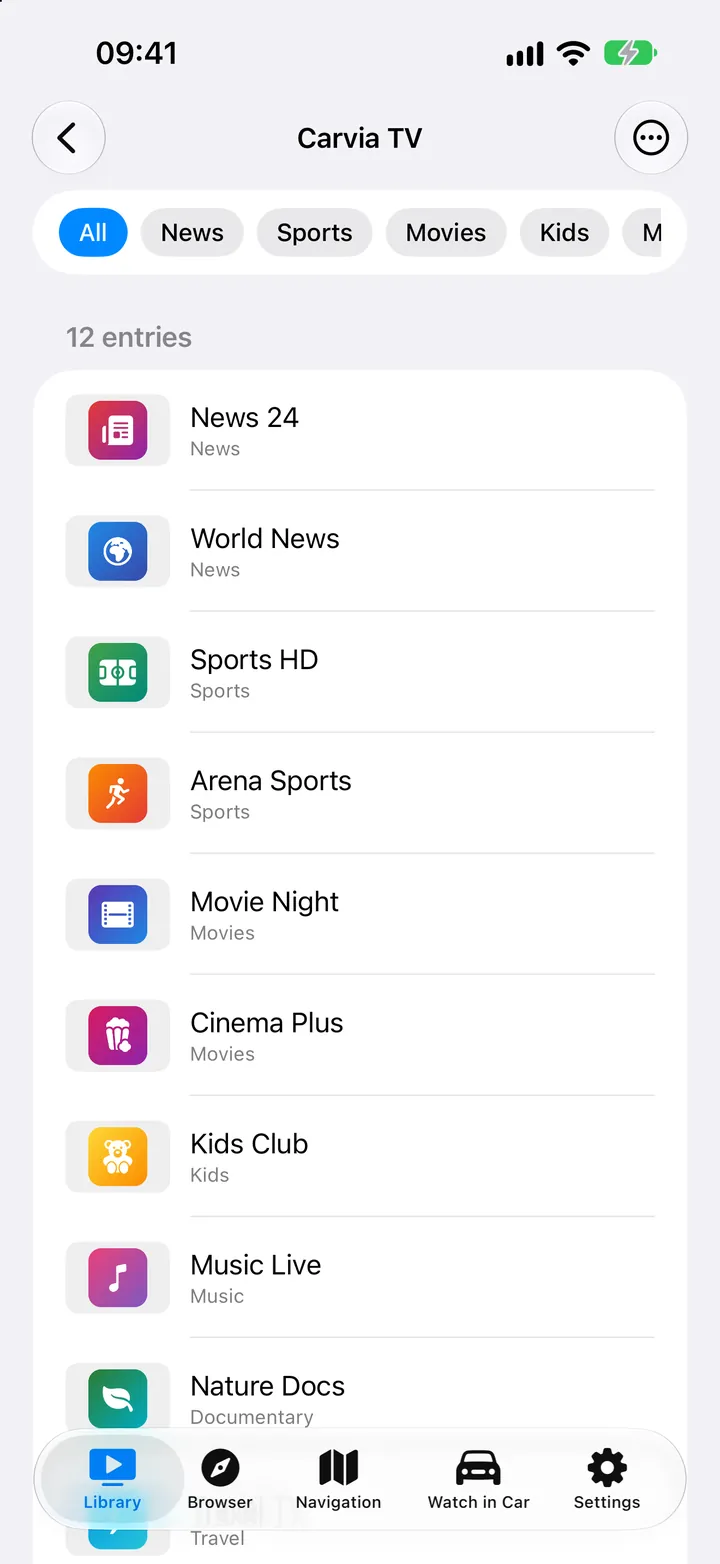
Watch in Car screen on iPhone with the mirroring button
Library

Pick on your phone, watch on the car

The iPhone and the car stay in sync. Choose a channel in the Library on your phone and it starts on the car display; send the current video to the car from the player with one button.

CarPlay library with playlists as folders
Carvia library on iPhone with channel groups
On the phone

A proper player underneath.

01

Every stream type

M3U, M3U8, HLS and HTTP streams. Xtream Codes logins import live channels, movies and series automatically.

02

Reads your tags

group-title and tvg-logo are honored, so channels land in the right group with the right logo.

03

Folders, not clutter

Each playlist is a folder you can refresh, rename or delete. Favorites and search work across all of them.

04

Resume where you left off

Favorites and playback positions are stored separately, so large lists stay fast and your place is kept.

05

Local files, offline

Import videos from your device. MKV, AVI, MP4 and more play without a connection.

06

Add a list in seconds

Paste a link or scan a QR code. No account, no sign-up.

07

30 languages

The app and its store pages are fully localized, from Turkish and Thai to Khmer and Armenian.

08

No ads in the car

Carvia is free with ads on the phone. The car screen never shows an ad.

Android

Phone, Android Auto and cars with Google built-in.

The Android version is on its way to Google Play. Until then, install the APK from the versions page — every build is listed with its size and SHA-256 checksum.

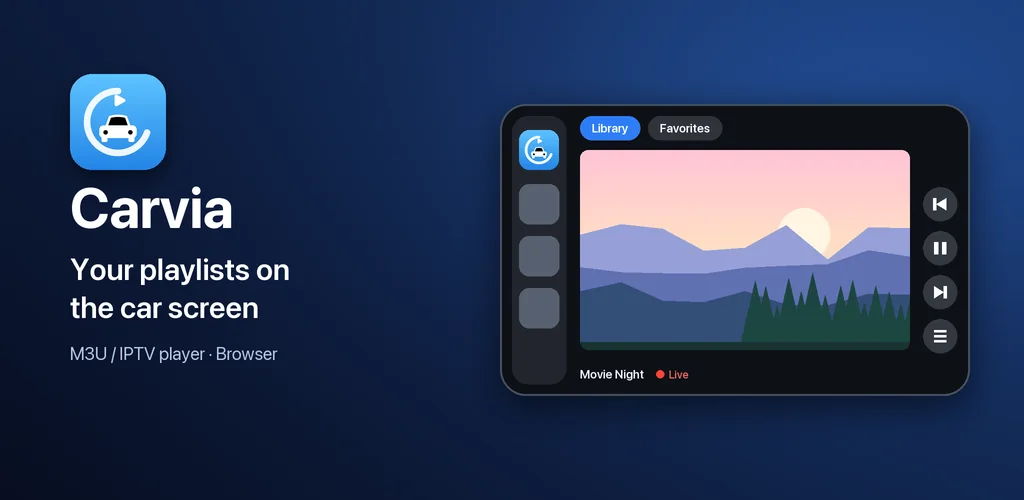
Carvia feature graphic: your playlists on the car screen

Android Auto

Carvia shows up with the other media apps. Browse favorites, playlists, groups and channels with logos; previous / next switches channel; search and voice commands work. Audio only — the car screen does not show video.

Android Automotive OS

A full-screen player on the car display, with large targets for Favorites, Library, Search, Add playlist and Settings. Start driving and the video turns off automatically; audio continues where the car allows it.

Android phone

Everything in the player plus a built-in web browser. Requires Android 8.0 or newer; Automotive builds require Android 10.

Premium

Free with ads. Premium when you want quiet.

Carvia is free to use. Premium removes the ads and, on iPhone, unlocks the higher mirroring profiles. Choose a weekly, monthly or yearly subscription, or a one-time lifetime purchase.

Ad-free

No banners, no interstitials on the phone. The car screen never showed ads to begin with.

High & Ultra mirroring

Full HD, up to 60 fps on supported iPhones. Pick the profile in Settings or Watch in Car.

Your choice of plan

Weekly, monthly, yearly — or lifetime, once. Prices are shown in the app in your local currency.

Subscriptions renew automatically unless cancelled at least 24 hours before the end of the period. Manage or cancel anytime in your App Store or Google Play account settings.

Privacy

Your lists stay on your device.

Carvia needs no account. Playlists, favorites, resume positions and Xtream logins are stored on your phone and sent only to the server you entered. Carvia is a player: it does not provide, host or recommend any content.

Read the privacy policy
FAQ

Questions, answered.

Does Carvia come with channels?

No. Carvia is a player only. You add your own M3U / M3U8 playlists, Xtream account or local files, and you are responsible for having the right to use them.

My car has no CarPlay video support. Does it still work?

Yes. Since 1.2, Carvia opens on every CarPlay car screen. Library, Browser and Mirror are in the top bar of the car display.

Which formats play?

M3U, M3U8, HLS and HTTP streams, Xtream Codes sources, and local files including MKV, AVI and MP4 (MKV / AVI support arrived in 1.2.3).

Does the car screen show video on Android Auto?

No. Android Auto plays audio only and the picture stays on your phone. Full-screen video is available on Android Automotive OS (cars with Google built-in).

How do I mirror my iPhone to the car?

Open the Watch in Car tab and tap Start mirroring. Your whole iPhone screen appears on the car display in portrait or landscape; Premium adds High and Ultra quality profiles.

Where do I get the Android version?

It is coming to Google Play. Until it is live you can install the APK from the versions page; each build lists its size and SHA-256 so you can verify the file.

Is my data sent anywhere?

Your playlists and logins stay on the device and are sent only to the server you entered. There is no account. See the privacy policy for the details on analytics and ads.
Add your list once. Watch it in the car.

Carvia is on the App Store today and coming to Google Play. The Android APK is available now.